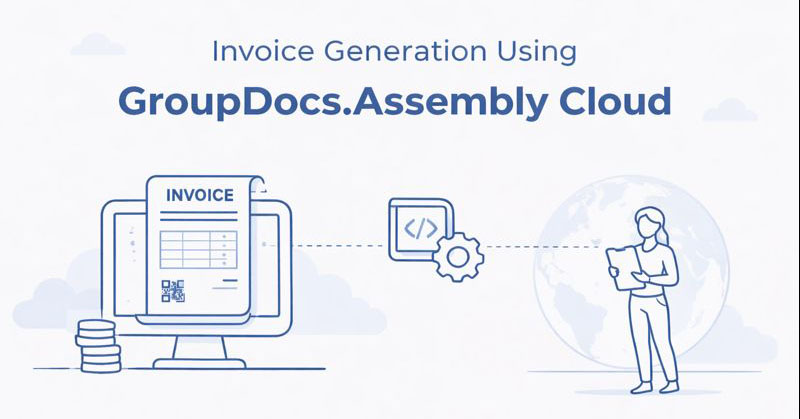
Overview
การสร้างใบแจ้งหนี้แบบเรียลไทม์เป็นความต้องการทั่วไปของระบบบิลลิง, แพลตฟอร์มอี‑คอมเมิร์ซ, และแอปพลิเคชัน SaaS.
ด้วย GroupDocs.Assembly Cloud คุณสามารถสร้างใบแจ้งหนี้แบบมืออาชีพได้ทั้งหมดในคลาวด์โดยไม่ต้องติดตั้งซอฟต์แวร์สำนักงานใด ๆ บนเซิร์ฟเวอร์ของคุณ.
ประโยชน์สำคัญ
- ความยืดหยุ่นของเทมเพลต – ออกแบบรูปแบบใบแจ้งหนี้ในโปรแกรมสร้างเอกสารเช่น Microsoft Word หรือ LibreOffice Writer เป็นต้น
- การผูกข้อมูลแบบไดนามิก – เติมข้อมูลลงในเทมเพลตด้วย JSON หรือ XML ผ่านแท็กง่าย ๆ หรือใช้ LINQ ขั้นสูงสำหรับการคำนวณ, การวนลูป, และเงื่อนไข
- หลายรูปแบบการส่งออก – สร้างใบแจ้งหนี้ขั้นสุดท้ายเป็น DOCX เพื่อแก้ไขต่อหรือเป็น PDF เพื่อการแจกจ่ายแบบอ่าน‑ได้อย่างเดียว
- การจัดเก็บที่ปลอดภัย – เข้าถึงเทมเพลตและเอกสารที่เก็บไว้ใน GroupDocs Cloud ผ่านโทเคนการตรวจสอบสิทธิ์
- สภาพแวดล้อมที่เบา – การประมวลผลทั้งหมดทำงานบน GroupDocs Cloud, ลดภาระบนโครงสร้างพื้นฐานของคุณ ไม่ต้องพึ่งไลบรารีของบุคคลที่สามหรือต้องการซีพียู/หน่วยความจำสูง
ในส่วนต่อไปนี้ เราจะพาคุณผ่านขั้นตอนทั้งหมด – ตั้งแต่การเตรียมเทมเพลตและแหล่งข้อมูล ไปจนถึงการสร้างใบแจ้งหนี้ด้วย .NET SDK ผ่าน C# และด้วยคำสั่ง cURL ธรรมดา.
Prepare Invoice Template
ออกแบบรูปแบบใบแจ้งหนี้ด้วยโปรแกรมบนเดสก์ท็อปที่คุณชื่นชอบ (เช่น Microsoft Word หรือ LibreOffice Writer) แล้วใส่ แท็กตัวแทน ที่สอดคล้องกับฟิลด์ JSON ที่จะใช้ต่อไป ตัวอย่างเช่น:
| เทมเพลต | เส้นทาง JSON |
|---|---|
<<[Invoice.Number]>> | invoice.number |
<<[Customer.Name]>> | customer.name |
และการกำหนดรูปแบบเทมเพลตการแสดงตารางจะมีลักษณะดังนี้:
| Description | Quantity | Unit Price | Cost |
|---|---|---|---|
<<foreach [in Items]>><<[Description]>> | <<[Quantity]>> | $<<[UnitPrice]:"N2">> | $<<[Quantity*UnitPrice]:"N2">><</foreach>> |
เพื่อความสะดวก คุณสามารถดาวน์โหลด ตัวอย่างเทมเพลต ได้จากด้านล่าง:
หรือสร้างเทมเพลตของคุณเองเพื่ออัปโหลดไปยัง GroupDocs Cloud storage (ส่วนต่อไป).
Upload Template to Cloud Storage
ขั้นตอนหลักสำหรับโค้ด C#
- สร้างอ็อบเจกต์
Configurationด้วย App SID และ App Key ของคุณ. - เริ่มต้นไคลเอนท์ AssemblyApi.
- อัปโหลดไฟล์เทมเพลตจากเครื่องของคุณไปยังเส้นทางในคลาวด์สตอเรจ (เช่น
templates/invoice-template.docx).
// 1️⃣ Initialize the Cloud API configuration
var config = new Configuration
{
    AppSid = "YOUR_APP_SID",      // replace with your App SID
    AppKey = "YOUR_APP_KEY"       // replace with your App Key
};
var assemblyApi = new AssemblyApi(config);

// 2️⃣ Define the cloud path where the template will be stored
string cloudTemplatePath = "templates/invoice-template.docx";

// 3️⃣ Open the local template file (prepare this file beforehand)
using (var templateStream = File.OpenRead("resources/invoice-template.docx"))
{
    // 4️⃣ Build the upload request – the API expects a stream + target path
    var uploadRequest = new UploadFileRequest(templateStream, cloudTemplatePath);

    // 5️⃣ Execute the upload; the template is now available in Cloud storage
    assemblyApi.UploadFile(uploadRequest);
}
Tip: คุณสามารถอัปโหลดไฟล์ด้วยคำสั่ง cURL ง่าย ๆ (ดูส่วน Generate Invoice with cURL ด้านล่าง) หากต้องการวิธีการแบบ command‑line.
Create Data Source
สร้างไฟล์ JSON ที่มีข้อมูลใบแจ้งหนี้
ตัวอย่าง JSON ด้านล่างสอดคล้องกับแท็กในเทมเพลต.
บันทึกเป็น invoice-data.json ในโฟลเดอร์ resources หรือฝังลงในโค้ดของคุณโดยตรง.
{
  "invoice": {
    "number": "INV-2024-001",
    "issueDate": "2024-01-15T00:00:00"
  },
  "customer": {
    "name": "John Smith",
    "company": "Acme Corporation",
    "email": "john.smith@example.com",
    "address": "123 Main Street",
    "city": "New York",
    "state": "NY",
    "zipCode": "10001",
    "country": "USA"
  },
  "items": [
    {
      "description": "Web Development Services",
      "quantity": 40,
      "unitPrice": 150.00
    },
    {
      "description": "UI/UX Design",
      "quantity": 20,
      "unitPrice": 120.00
    },
    {
      "description": "Consulting Services",
      "quantity": 10,
      "unitPrice": 200.00
    }
  ],
  "taxRate": 10.0
}
การใช้ไฟล์ JSON ในโค้ด
// Load the JSON data from a file – this string will be passed to the API
string jsonData = File.ReadAllText("resources/invoice-data.json");
Note: สามารถส่ง JSON นี้เป็นอินไลน์ในส่วน body ของคำขอเมื่อใช้ cURL; วิธีไฟล์เป็นทางเลือกที่สะดวกเมื่อข้อมูลมีขนาดใหญ่.
Generate Invoice with .NET SDK
ขั้นตอนหลักสำหรับโค้ด C#
- อัปโหลด เทมเพลต (ขั้นตอนข้างต้น).
- อ่าน แหล่งข้อมูล JSON.
- กำหนดค่า
AssembleOptions– ระบุรูปแบบการบันทึก (docxหรือpdf) และเชื่อมโยงเทมเพลต. - เรียก
AssembleDocumentเพื่อสร้างใบแจ้งหนี้. - บันทึก ไฟล์ผลลัพธ์ไว้ในเครื่องหรือในที่จัดเก็บอื่น.
using GroupDocs.Assembly.Cloud.Sdk;
using GroupDocs.Assembly.Cloud.Sdk.Model;
using GroupDocs.Assembly.Cloud.Sdk.Model.Requests;
using System.IO;

// 1️⃣ Initialize the Assembly API (same config as upload step)
var config = new Configuration { AppSid = "YOUR_APP_SID", AppKey = "YOUR_APP_KEY" };
var assemblyApi = new AssemblyApi(config);

// 2️⃣ Load JSON data (see previous section)
string jsonData = File.ReadAllText("resources/invoice-data.json");

// 3️⃣ Prepare assembly options
var assembleOptions = new AssembleOptions
{
    // Choose the format you need – "docx" for editable, "pdf" for final PDF
    SaveFormat = "pdf",

    // Pass the whole JSON string – the API parses it automatically
    ReportData = jsonData,

    // Reference the template that we uploaded earlier
    TemplateFileInfo = new TemplateFileInfo
    {
        FilePath = "templates/invoice-template.docx"   // cloud path
    }
};

// 4️⃣ Build the request object
var assembleRequest = new AssembleDocumentRequest(assembleOptions);

// 5️⃣ Execute the request – the response contains the generated file stream
var assembledDocument = assemblyApi.AssembleDocument(assembleRequest);

// 6️⃣ Persist the result locally
using (var outputStream = File.Create("output/invoice-output.pdf"))
{
    // Copy the API stream to a file on disk
    assembledDocument.CopyTo(outputStream);
}
Result:
invoice-output.pdf(หรือ.docxหากเปลี่ยนSaveFormat) จะเป็นใบแจ้งหนี้ที่สมบูรณ์พร้อมส่งให้ลูกค้า.
Generate Invoice with cURL
หากคุณไม่ต้องการติดตั้ง SDK ใด ๆ และต้องการทำทั้งหมดด้วยคำสั่ง HTTP ธรรมดา สามารถทำตามขั้นตอนต่อไปนี้
1️⃣ รับโทเคนการเข้าถึง
curl.exe -X POST "https://api.groupdocs.cloud/connect/token" \
  -d "grant_type=client_credentials&client_id=YOUR_CLIENT_ID&client_secret=YOUR_CLIENT_SECRET" \
  -H "Content-Type: application/x-www-form-urlencoded"
ผลลัพธ์จะมี access_token – ให้นำค่าที่ได้ไปใช้ในขั้นตอนต่อไป
2️⃣ อัปโหลดเทมเพลตด้วย cURL
curl.exe -X PUT "https://api.groupdocs.cloud/v1.0/assembly/storage/file/templates/invoice-template.docx" \
  -H "Authorization: Bearer ACCESS_TOKEN" \
  -F "File=@resources/invoice-template.docx"
หากเทมเพลตได้ถูกเก็บไว้แล้ว (ตามขั้นตอน SDK) คุณสามารถข้ามขั้นตอนนี้ได้
3️⃣ Assemble ใบแจ้งหนี้
สร้างไฟล์ JSON ชื่อ invoice-data.json ในโฟลเดอร์ resources ตามที่อธิบายไว้ในส่วน [Create Data Source {#json-data}] ด้านบน
จากนั้นเรียก endpoint AssembleDocument
เมื่อทำงานกับชุดข้อมูลใบแจ้งหนี้ขนาดใหญ่ วิธีที่มีประสิทธิภาพที่สุดคือการอ่านไฟล์ข้อมูลแล้วส่งเป็นตัวแปรกลางก่อนส่งไปยัง API ตัวอย่างต่อไปนี้แสดงวิธีทำ:
REPORT_DATA_ESCAPED=$(python -c "import json,sys; print(json.dumps(open('resources/invoice-data.json','r',encoding='utf-8').read()))")

curl.exe -v "https://api.groupdocs.cloud/v1.0/assembly/assemble" \
  -X POST \
  -H "Authorization: Bearer ACCESS_TOKEN" \
  -H "Content-Type: application/json" \
  --data-binary @- <<EOF
{
  "TemplateFileInfo": {
    "FilePath": "/templates/invoice-template.docx"
  },
  "SaveFormat": "pdf",
  "OutputPath": "/output/invoice-generated.pdf",
  "ReportData": $REPORT_DATA_ESCAPED
}
EOF
คำสั่งนี้จะสร้างใบแจ้งหนี้และเก็บไว้ใน GroupDocs Cloud storage ที่ไฟล์ /output/invoice-generated.pdf
4️⃣ ดาวน์โหลดใบแจ้งหนี้ที่สร้างขึ้น
curl.exe \
  "https://api.groupdocs.cloud/v1.0/assembly/storage/file/Output/invoice-generated.pdf" \
  -H "Authorization: Bearer ACCESS_TOKEN" \
  -H "Accept: application/octet-stream" \
  -o invoice-generated.pdf
Result: ตอนนี้คุณมีใบแจ้งหนี้ที่พร้อมส่งโดยไม่ต้องเขียนโค้ด C#.
Conclusion
ในบทความนี้เราได้แสดงให้เห็นว่า GroupDocs.Assembly Cloud ทำให้การสร้างใบแจ้งหนี้เป็นเรื่องง่าย:
- การประมวลผลบนคลาวด์ที่เบา – ไม่ต้องใช้เครื่องมือของบริษัทภายนอกบนเซิร์ฟเวอร์ของคุณ
- อิสระในการออกแบบเทมเพลต – สร้างเอกสารเทมเพลตใน Word/LibreOffice แล้วเก็บไว้บนคลาวด์
- การผูกข้อมูลแบบไดนามิก – ส่ง JSON (หรือ XML) ตรง ๆ พร้อมสนับสนุน LINQ, การคำนวณ, ลูป, และเงื่อนไข
- รูปแบบผลลัพธ์หลายแบบ – เลือก DOCX สำหรับการแก้ไขต่อหรือ PDF สำหรับการเผยแพร่แบบอ่าน‑ได้อย่างเดียว
- การผสานรวมที่ง่าย – ใช้ .NET SDK หรือหลายคำสั่ง cURL, ตัวอย่างโค้ดครบวงจร
เริ่มอัตโนมัติขั้นตอนการวางบิลของคุณวันนี้โดยอัปโหลดเทมเพลตและเรียก endpoint assemble!
See also
- GroupDocs.Assembly Cloud API Reference – https://reference.groupdocs.cloud/assembly/
- GroupDocs.Assembly Cloud Documentation – https://docs.groupdocs.cloud/assembly/
- Quick Start Guide for Building Document Templates – https://docs.groupdocs.cloud/assembly/getting-started/quick-start/
- Working with Advanced Elements (Barcodes, Bookmarks, Hyperlinks, and More) – https://docs.groupdocs.cloud/assembly/developer-guide/working-with-other-elements/
- Comprehensive Guide to Advanced Template Definition Syntax – https://docs.groupdocs.com/assembly/net/advanced-usage/
Frequently Asked Questions (FAQs)
ฉันสามารถใช้ LibreOffice Writer แทน Microsoft Word สำหรับเทมเพลตของฉันได้หรือไม่?
ได้. API ทำงานกับไฟล์ DOCX ใด ๆ ไม่ว่าจะสร้างด้วยโปรแกรมแก้ไขใดก็ตามสามารถทำการคำนวณ (เช่น ยอดรวม, ภาษี) ภายในเทมเพลตได้หรือไม่?
ทำได้. สามารถใช้ LINQ หรือการคำนวณทางคณิตศาสตร์ใน placeholder ได้ เช่น<<[item.quantity * item.unitPrice]>>ขนาดสูงสุดของไฟล์เทมเพลตหรือไฟล์ข้อมูลที่อัปโหลดได้คือเท่าไหร่?
บริการรองรับไฟล์ขนาดสูงสุด 500 MB; เทมเพลตใบแจ้งหนี้ทั่วไปมักมีขนาดเล็กกว่านี้หลายเท่าต้องสร้างโฟลเดอร์เป้าหมายในคลาวด์สตอเรจก่อนอัปโหลดหรือไม่?
ไม่. endpoint การอัปโหลดจะสร้างโครงสร้างโฟลเดอร์โดยอัตโนมัติหากยังไม่มีฉันจะได้รับการทดลองใช้แบบฟรีหรือไม่?
ได้. มีให้ใช้งาน 150 การเรียก API ฟรีต่อเดือน